By Alex Carter, Editor at GetVerifyCode
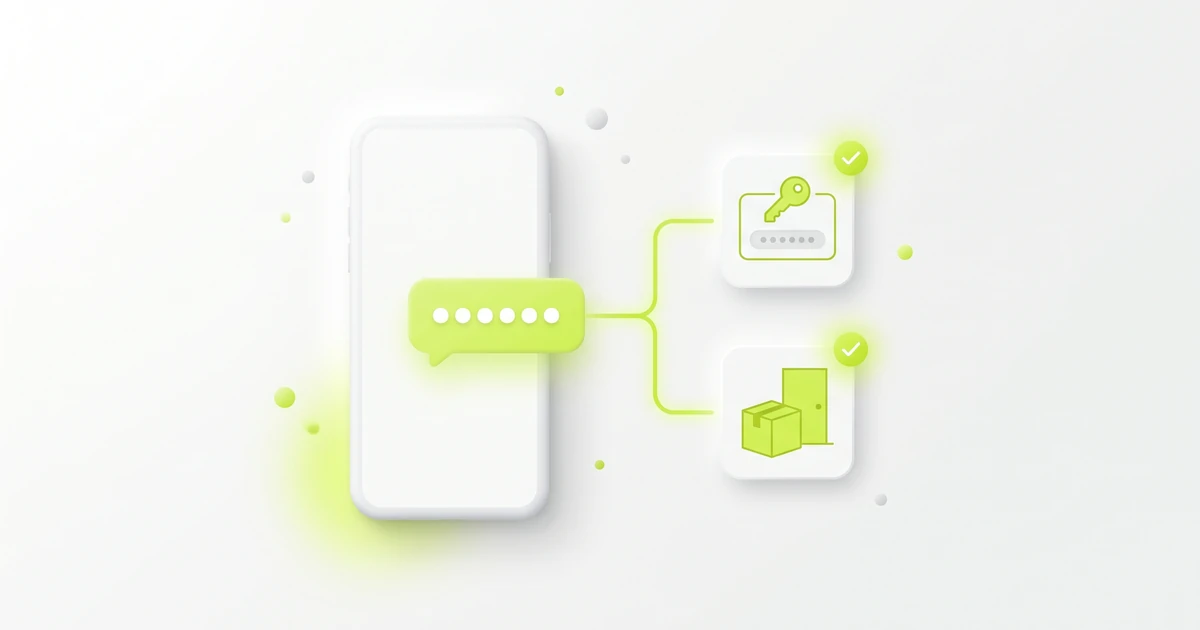
What is an ID verification code from Apple? It is the six-digit code Apple asks for when you sign in to your Apple Account, formerly Apple ID, on a new device. It appears on a trusted device or comes by text or call to your trusted phone number. Enter it only on the new device, and never share it.
Key facts
- Apple's two-factor authentication page says a first sign-in on a new device or the web needs your Apple Account password and a six-digit verification code.
- Apple's verification code guide says the code is displayed on your trusted devices, or you can get it by text or phone call to your trusted phone number.
- Apple says your trusted number is sometimes verified in the background on iPhone, so you might not need to type a code.
- After the first sign-in, Apple says that device won't ask again unless you sign out completely, erase it, or change your password for security reasons.
- Apple's sign-in page says Apple ID is now Apple Account, with the same email address or phone number and password.
Trusted device vs a text or call to the trusted number
Apple gives you two ways to get the same six-digit code:
- Code on a trusted device: shown after you tap Allow on a sign-in notification. No SMS or signal needed. Best when another of your Apple devices is nearby.
- Text or call to the trusted number: sent when you choose "Didn't Get a Code?" or "Can't get to your devices?" on the code screen. Needs the trusted phone and signal. Best when no trusted device is handy.
Apple's trusted phone numbers and devices page defines a trusted device as an iPhone, iPad, Apple Watch, Apple Vision Pro or Mac already signed in with two-factor authentication. Apple Watch can show the code on watchOS 6 or later.
The notification may show a map of the approximate sign-in location. Apple says it is based on the new device's IP address, so it can reflect the network rather than the exact place. If you are the one signing in, you can still tap Allow. If you aren't signing in, don't allow it.
You need at least one trusted phone number. Apple suggests adding a second one that isn't tied to your iPhone, so a lost or damaged phone doesn't lock you out. On iPhone, go to Settings, tap your name, then Sign-In & Security, then Two-Factor Authentication, and tap Add Trusted Phone Number.
Apple also says Apple Pay and Sign in with Apple require two-factor authentication, so the code there is the same Apple Account sign-in code.
Where to enter the Apple ID verification code
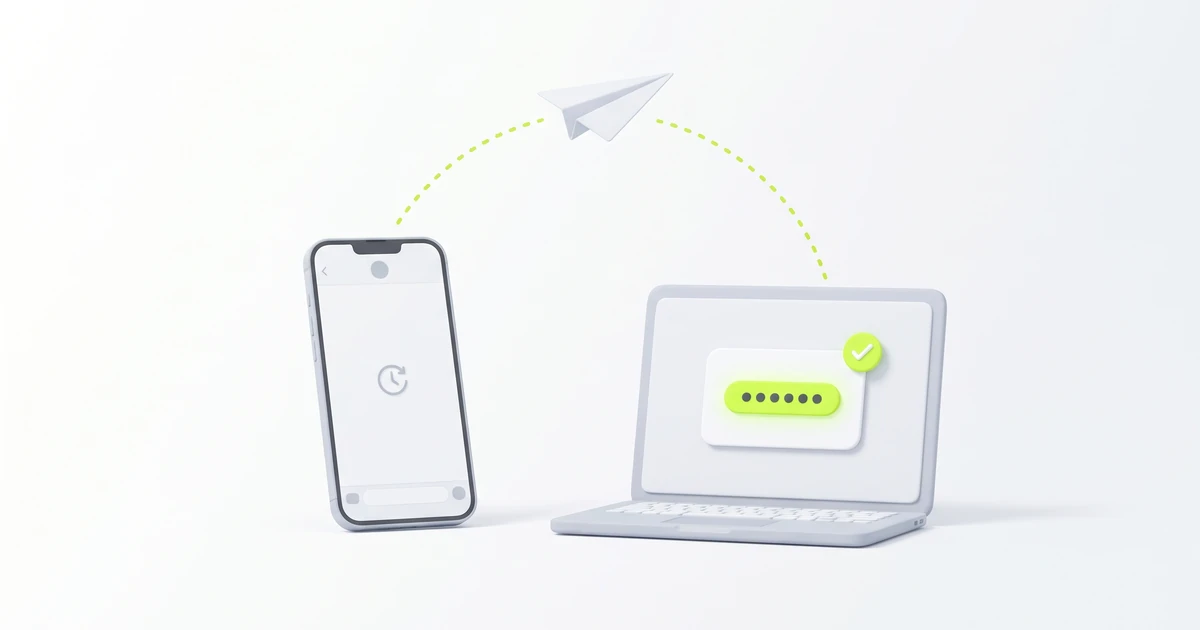
Type the code on the new device or browser you are signing in to, not on the trusted device that displayed it. Apple's steps are:
- Sign in to your Apple Account on the new device or browser.
- Look for the sign-in notification on any trusted device.
- Choose Allow to see the verification code.
- Enter the code on the other device to finish signing in.
Verification code on Apple TV
Apple TV asks for the same code. Apple's steps for Apple TV 4K or Apple TV HD are:
- Open Settings and go to Users and Accounts.
- Choose a Suggested User or select Add New User.
- Pick Use Another Apple Device to sign in with a nearby iPhone or iPad, or pick Sign in Manually.
- If you sign in manually, enter your email address or phone number and password, then the six-digit code sent to your trusted device or phone number.
If Apple is not sending a verification code
Apple doesn't state a wait time, so work through these checks in order:
- Check your other trusted devices first. The code may be waiting on an iPad, Mac or Apple Watch, not in Messages.
- On the code screen, choose "Didn't Get a Code?" and have the code sent to your trusted phone number by text or call.
- If you screen unknown senders, Apple says to check the Unknown Senders filter in Messages, and to turn on Time Sensitive notifications under Settings, Apps, Messages, Unknown Senders, Allow Notifications.
- For more iPhone checks, see where to find an SMS code on iPhone and our 12 fixes for a missing verification code. On Android, see not receiving verification code texts on Android.
- Use only the newest code. If it's rejected, see verification code invalid or expired.
If your number has changed, our guide to an old phone number and verification explains the general problem, but for an Apple Account only Apple's own recovery applies.
If you can't use your trusted devices or number
Apple's official options depend on whether the problem is temporary or permanent:
- Temporary: wait until you have access in the next few days, sign in, then add more trusted numbers.
- Permanent: try to sign in, choose "Didn't Get a Code?" or "Can't get to your devices?", then "Can't use [phone number]", and follow the steps to start account recovery.
Apple says recovery might take a few days or longer, and contacting Apple can't speed it up. Our general guide on getting a verification code without a phone covers other sites. It is not a way around Apple Account verification.
Keep trusted numbers on phones you own and will keep. Never add a temporary, shared or borrowed number as a trusted or recovery number, because whoever controls it gets your codes. Apple sets its own terms, and laws differ by country, so check both.
Related guides
About the author: Alex Carter is the editor at GetVerifyCode. Alex tests SMS verification routes across services and countries and writes plain-language guides on receiving OTP codes safely.
GetVerifyCode is not affiliated with the apps named in this article. Follow each app's terms and local law.
FAQ
FAQ
It is the six-digit two-factor code Apple asks for when you sign in to your Apple Account on a new device or browser. It shows on a trusted device or arrives by text or call to your trusted number.
On the new device, browser or Apple TV you are signing in to. The trusted device only displays the code after you tap Allow. Never give the code to anyone who calls or messages you.
Use another trusted device: an iPad, Mac, Apple Watch or Apple Vision Pro signed in to your account can show the code without a text. Otherwise, Apple's options are to wait until you regain access or start account recovery.
The code may be on another trusted device rather than in Messages, so check those first. Then choose "Didn't Get a Code?" for a text or call, and check the Unknown Senders filter in Messages.
On the Apple TV itself. Go to Settings, Users and Accounts, choose a user, then Sign in Manually. After your email or phone number and password, enter the six-digit code from your trusted device or phone number.