By Alex Carter, Editor at GetVerifyCode
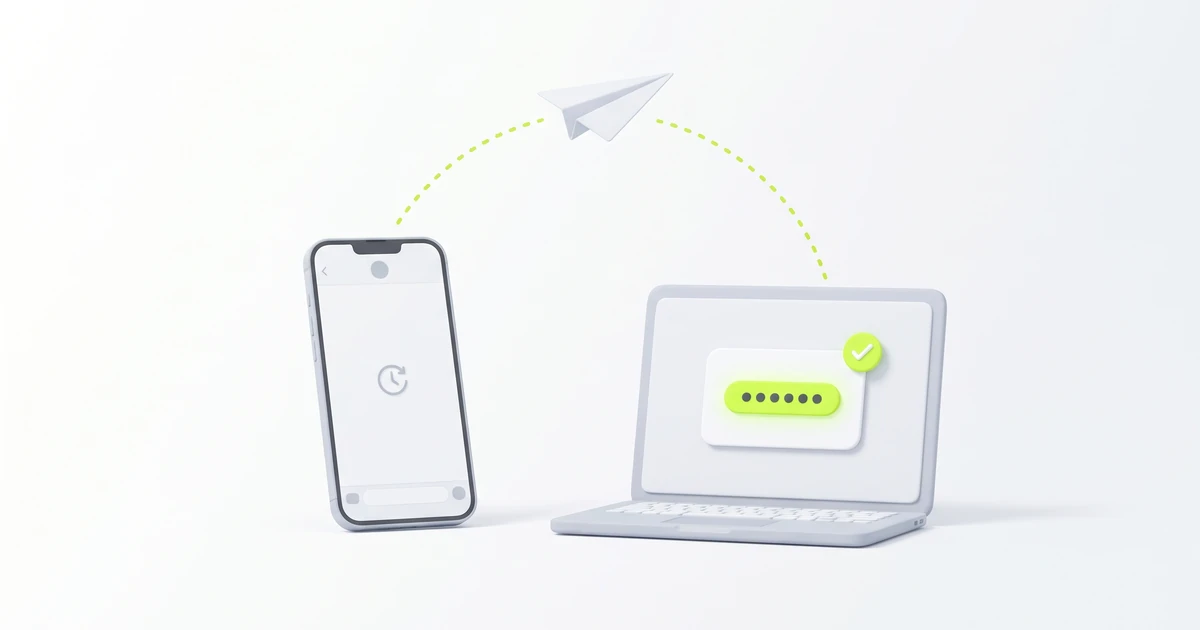
What is a 2FA code? It is the short one-time code you enter after your password to prove a sign-in is really you, the second step in two-factor authentication. It usually arrives by text or voice call or comes from an authenticator app, and some services replace it with a prompt you simply tap.
Key facts
- CISA lists 2FA, Two Factor Authentication and 2-Step Verification as different ways to say multifactor authentication (MFA): two or more authenticators before a service lets you in.
- CISA gives a confirmation text on your phone and an authentication app as examples of "something you have".
- Google's 2-Step Verification help says a 6-digit code can be sent to your phone by text message or voice call.
- Google says an authenticator app can create one-time codes even without an internet connection or mobile service.
- Google says never share your verification codes, and that you won't receive a call from Google to verify a code.
SMS 2FA codes vs authenticator-app codes vs prompts
A 2FA code is not one fixed thing. The same second step can reach you in several forms, and each one looks and behaves a little differently:
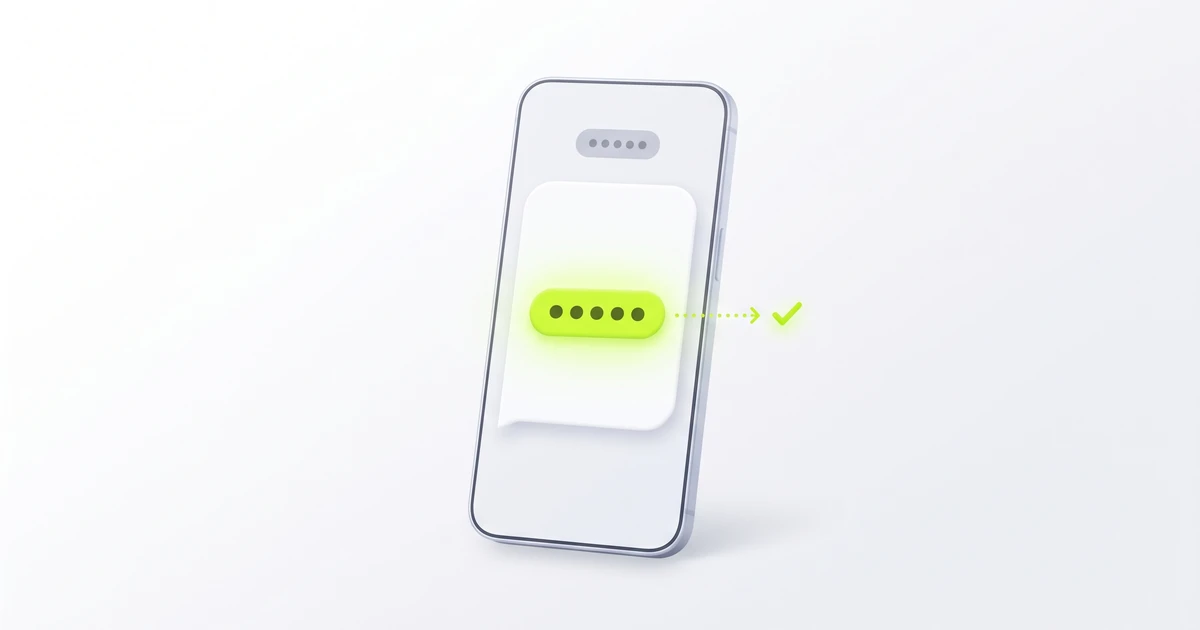
- SMS or voice code: a number, often 6 digits, sent to the phone number on your account each time you sign in. You need signal and access to that same number. Google notes that codes sent by text or call can be vulnerable to phone number-based hacks.
- Authenticator-app code: a 6-digit number made on your own device, which refreshes on a short timer. It is linked to the account once during setup, so it keeps working offline and without a SIM. See 6-digit login codes from an authentication app and TOTP explained.
- Sign-in prompt: no code to type. A notification on a phone that is already signed in asks whether it is you, and you tap Yes or No. Google says prompts can help protect against SIM swap and other phone number-based hacks.
- Backup code: a one-time code from a list you saved earlier. Google offers a set of 8-digit backup codes for when you lose your phone.
- Passkey or security key: Google says that signing in with a passkey skips the separate second step, because it already checks that you have your device.
Code length and expiry depend on the service, so the app's own message is the best guide. Which of these is strongest, and how 2FA differs from 2-Step Verification and MFA, is covered in two-factor vs two-step verification.
How to use a 2FA code safely
A 2FA code only protects you if you are the only person who ever types it. Follow these habits every time:
- Enter it only on a sign-in screen you opened yourself, in the official app or on the official website.
- Use the newest code once, and use it quickly. If you asked for several codes, older ones often stop working. If a code is rejected, see verification code invalid or expired.
- Never read a code out, forward it, or send a screenshot of it. Google's 2-Step Verification help page says never share your verification codes with anyone, as scammers may try to take over your account.
- Treat any call or message asking for your code as a scam, even if it claims to be support. Google says you won't receive a call from Google to verify a code.
- Keep backup codes somewhere safe and private, and never give them out.
CISA's MFA page adds that any MFA is better than no MFA, so a text code is still far better than a password alone. For Google accounts, see how to enable 2-Step Verification on Gmail and the g.co/sc security code.
Got a 2FA code you didn't request?
A 2FA code you did not ask for can mean someone typed your password and reached the second step. Do not enter the code and do not share it. Change that account's password from the official app or site, then review recent sign-ins and devices. Our guides to a random verification code text and a Google code you didn't request walk through the next steps.
Why a temporary number is the wrong 2FA phone
A 2FA phone has to receive codes every time you sign in, for as long as you keep the account. A temporary number is meant for a one-off sign-up text and may not be reachable later, so using it for 2FA can lock you out. A 2FA code for a bank or crypto account works the same way, as a second check after your password, and you should never use a temporary number for banking or financial 2FA, or for recovery on accounts you keep. Use your own number, an authenticator app or a passkey instead; two-factor vs two-step verification explains why. Laws differ by country, and each app sets its own terms.
Related guides
- What is two-factor vs two-step verification?
- 6-digit login code from an authentication app
- Time-based one-time password (TOTP) explained
- What is a verification code? SMS codes explained
- What does OTP mean? One-time passcodes explained
- Verification code invalid or expired? How to fix it
- Snapchat verification code: what the text means
About the author: Alex Carter is the editor at GetVerifyCode. Alex tests SMS verification routes across services and countries and writes plain-language guides on receiving OTP codes safely.
GetVerifyCode is not affiliated with the apps named in this article. Follow each app's terms and local law.
FAQ
FAQ
A 2FA code is the one-time code you enter after your password as the second step of two-factor authentication. It can come by text, voice call or an authenticator app, and some services use a tap-to-approve prompt instead.
Mostly, yes. A 2FA code is a one-time password used as the second step at sign-in, and it is one kind of verification code. See what a verification code is and what OTP means.
Not quite. 2FA or 2-Step Verification is the security setting on your account; the code is what you type, or the prompt you tap, each time it asks. See two-factor vs two-step verification.
Look where you set up the second step: a text or call to your phone number, your authenticator app, or a prompt on a signed-in phone. If you lost your phone, use a saved backup code.
No. A temporary number may not receive your next login code, so you could lose access. Never use one for 2FA on banking, crypto or other financial accounts, or on any account you keep. Use your own number, an authenticator app or a passkey.